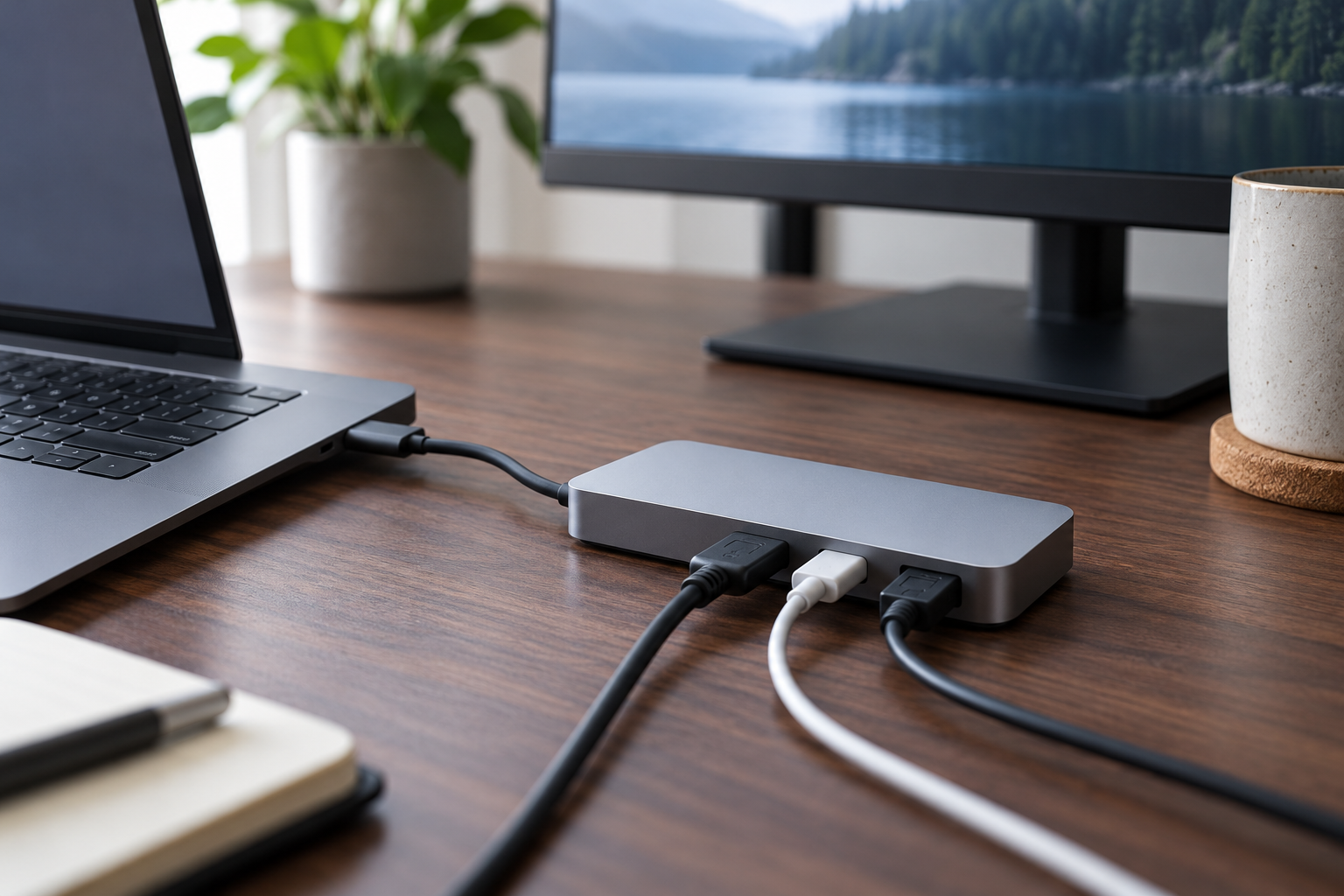
Start a laptop-and-monitor setup by deciding whether the laptop screen stays open. That choice changes the footprint, the input devices and the way you connect at the start of a working day.
Your decision, at a glance.
| Decision | What to look at | Next check |
|---|---|---|
| Open laptop | Extra screen and camera position | Lid depth and separate inputs |
| Vertical storage | Smaller surface footprint | Model-specific closed-screen requirements |
| Docked workflow | Fewer daily connections | Exact host/cable/display support |
Open-screen and closed-screen routines
An open laptop adds a useful screen, camera and keyboard, but it also occupies a deep wedge of the desktop. Place a paper outline for the open lid, not only the base. With a separate keyboard, decide whether the laptop keyboard is still part of the working area.
Closed-screen operation depends on the exact computer and operating system. Check its requirements rather than assuming a vertical stand makes the mode available. Keep the maker’s ventilation guidance in the arrangement.
Map every connection once
Draw a line from the laptop to each display, charger, keyboard receiver, storage device and network connection. Label the port and cable used. A single connector shape does not describe every data, video and power capability.
A dock can simplify daily connection, but only after the complete path works. Test the display directly first when troubleshooting; then add the dock and peripherals one at a time to isolate the change.
Make departure easy
Leave the host cable where it can be reached without pulling the dock out of a hidden space. Keep the power adapter and external storage connections stable during disconnects. A small landing zone for the laptop bag is often more useful than another desktop stand.
Finish the plan with the things that happen every day: joining a video call, using a notebook, leaving for another room and reconnecting. The right layout reduces those repeated steps.
Related hardware to investigate
Catalog references, not tested rankings. Confirm the exact configuration and open checks in each product note.
Your next decision
- Small-space laptop desk: Small standing desks, measured properly
Sources & scope
Product catalog snapshot: October 19, 2026. Selected primary references checked October 20, 2026. References are not current Amazon offer, price or availability verification.
This is a research draft, not a hands-on review. How the research is used