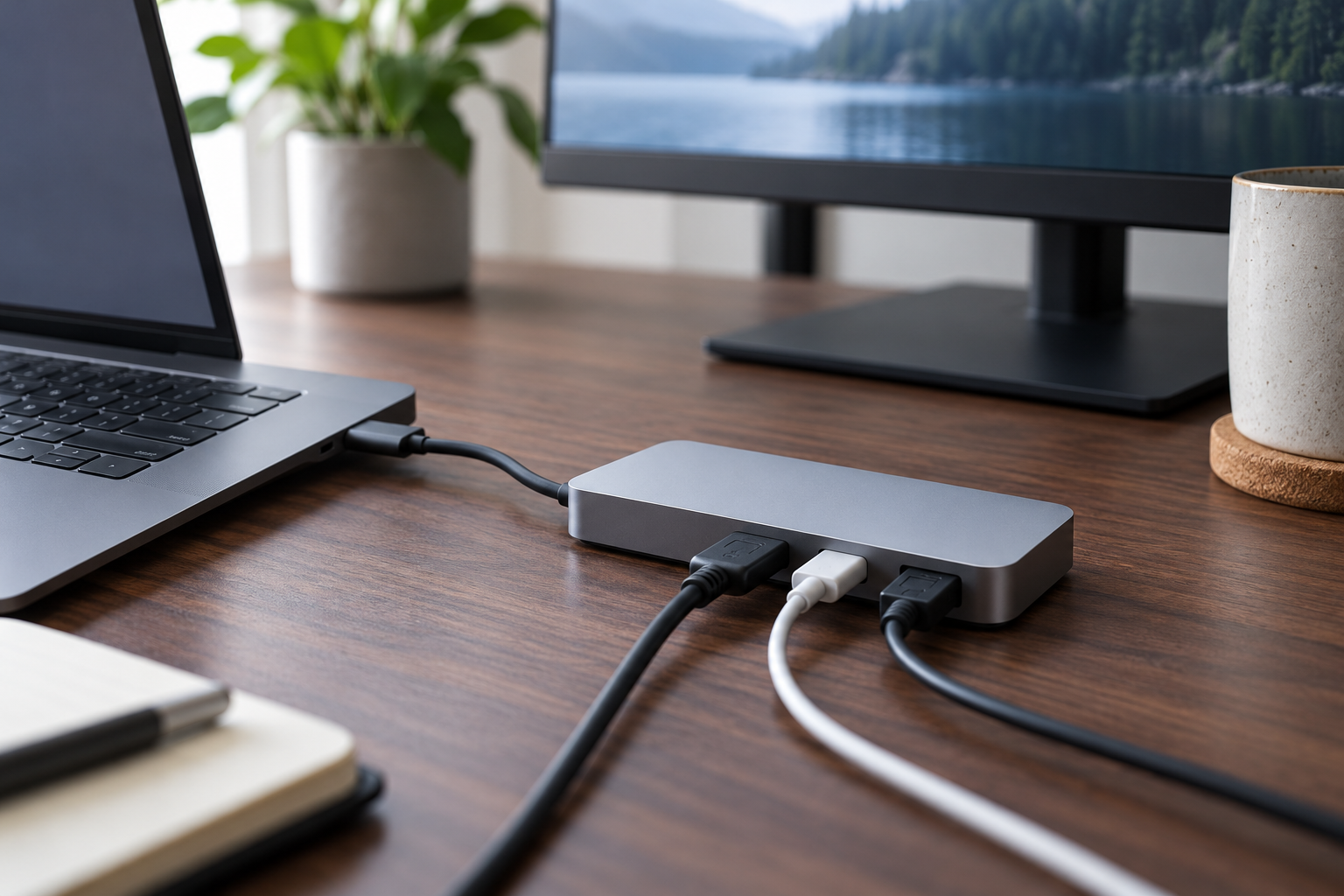
For a Mac dock, start with the exact Mac and required display arrangement. The dock cannot be evaluated independently of the model, chip, operating system and video path.
Your decision, at a glance.
| Decision | What to look at | Next check |
|---|---|---|
| Mac identity | Model, chip and OS | Use the corresponding support information |
| Display mode | Number, resolution and extension | Check simultaneous-output conditions |
| Software | Driver and permission requirements | Consider managed-device restrictions |
Write the host and display requirements
Record the Mac model and chip, the number of external displays, and the resolution and refresh rate needed on each. Apple’s support documentation directs users to model-specific display capabilities.
Also decide whether the laptop remains open. Do not apply a closed-screen condition from another generation without checking the exact model.
Separate output technologies
Read whether the dock uses a supported native display path or requires a software display driver. Check operating-system support and any required permissions. A work-managed Mac may have restrictions that change the practical choice.
The presence of several HDMI or DisplayPort sockets does not establish independent extended desktops under every host configuration.
Check daily operation, not just first connection
Verify charging, wake behavior and the peripheral connections needed for the routine against the exact dock documentation. Test the intended setup before hiding the dock or bundling its cables.
This guide does not declare one universal Mac dock. A useful comparison names the exact host, dock and display mode so the result can be checked again when software or hardware changes.
Check the Mac before counting dock ports
Apple documents different external-display support for different MacBook Air chips and display modes. Identify the exact Mac and check Apple’s display-support guidance before choosing a dock. Connector count alone cannot establish the number of independent screens. This is why a Mac-specific compatibility check is separate from a general multi-monitor connection plan.
Choose the right guide
This guide focuses on: check the exact mac display-output limits. For a different task, see plan a multi-monitor dock connection.
Sources & scope
Product catalog snapshot: October 19, 2026. Selected primary references checked October 20, 2026. References are not current Amazon offer, price or availability verification.
This is a research draft, not a hands-on review. How the research is used