Choose a dock cable for the complete job: host connection, data, displays and power. A USB-C connector at both ends does not describe all of those capabilities.
Your decision, at a glance.
| Decision | What to look at | Next check |
|---|---|---|
| Host link | Dock-required cable specification | Check all required capabilities |
| Power | Supported charging path | Separate from data and video |
| Route | Length and connector access | Avoid strain and unverified extensions |
Identify which cable you are replacing
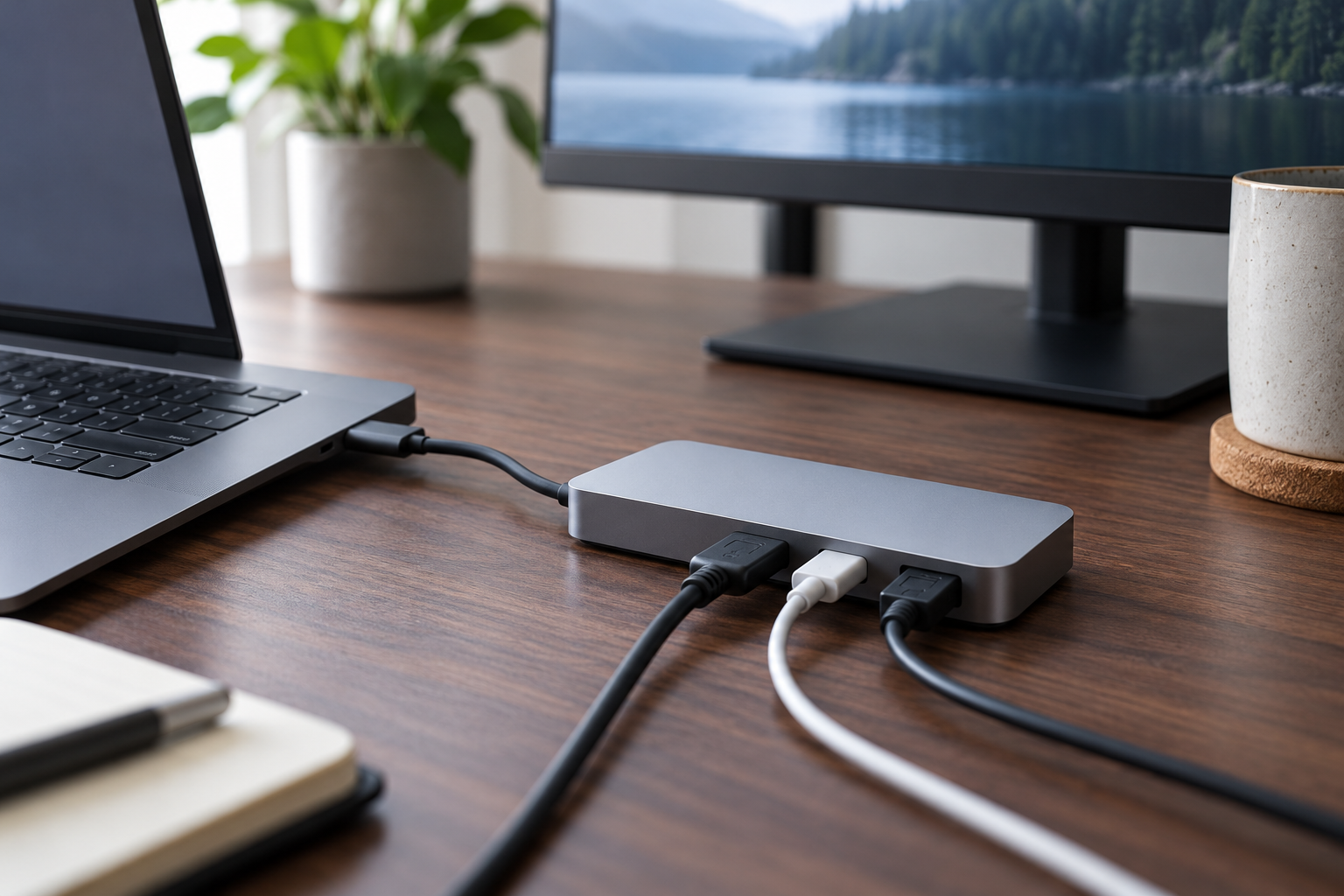
Distinguish the host-to-dock cable from a downstream accessory cable and from the power-adapter connection. Read the dock instructions for its required host cable and any restrictions on replacements.
If the supplied cable works but a replacement does not, compare documented capabilities before changing unrelated display settings.
Read the capability labels separately
USB-IF documentation distinguishes cable capabilities and power labeling. A power rating should not be treated as a video or data-speed rating. Likewise, a data-speed headline does not alone establish the charging requirement of a laptop.
Record the capabilities required by the host and dock and match the whole set, including the permitted cable length where specified.
Route without creating a new fault
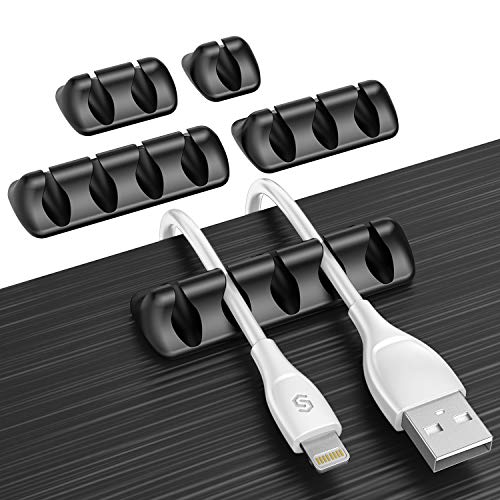
Choose a path that reaches the normal laptop position without pulling on the connector. Keep the host lead identifiable among downstream cables. Avoid an unverified extension or adapter simply to conceal the original cable.
After replacement, test the intended displays and peripherals together. A connection that charges the laptop is not evidence that every output path is working.
Sources & scope
Product catalog snapshot: October 19, 2026. Selected primary references checked October 20, 2026. References are not current Amazon offer, price or availability verification.
This is a research draft, not a hands-on review. How the research is used